1. Check that the alarm is on for the right time and day
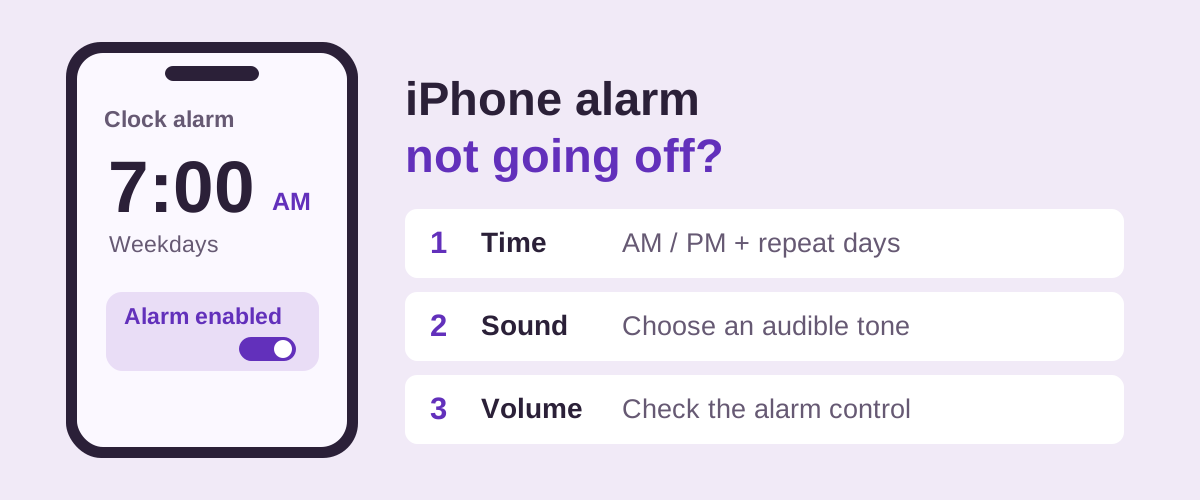
Open Clock → Alarms. Find the alarm you expected to hear and check its switch. Open that alarm to review the full time and repeat settings, then save any changes.
- Time: check AM/PM if your phone uses a 12-hour clock. For a morning alarm, 7:00 PM is the wrong setting.
- Repeat: select the days you need. A weekday schedule does not include Saturday or Sunday.
- The right alarm: check the specific entry rather than assuming another enabled alarm covers the same day.
Apple's Clock guide explains editing the time and choosing repeat days. Regular Clock alarms are separate from a Health sleep schedule.
2. Check the alarm volume in Sounds & Haptics
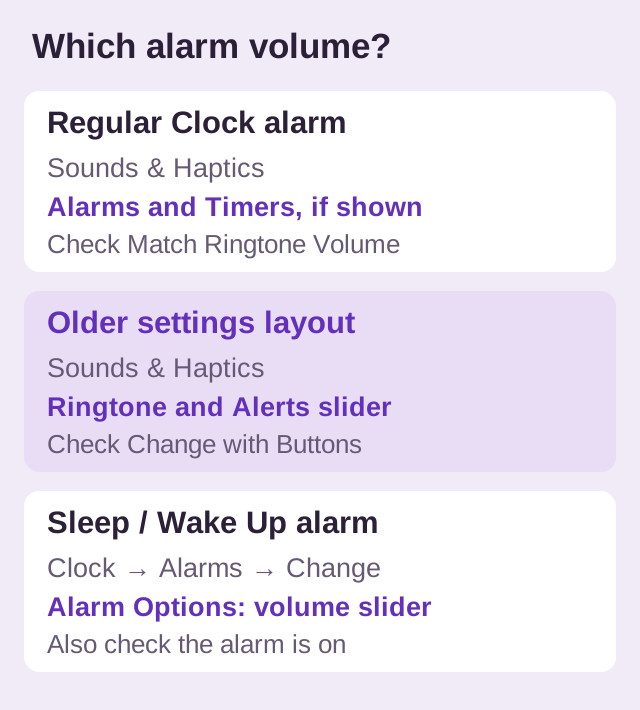
Open Settings → Sounds & Haptics. The layout depends on your iOS version:
- If you see Alarms and Timers: check Match Ringtone Volume. When it is off, use the separate alarm-volume slider. When it is on, the alarm matches your ringtone volume.
- If that section is absent: Apple's other alarm instructions use the Ringtone and Alerts slider to set regular Clock alarm volume.
See Apple's sound and volume guide for the separate controls, and its alarm support article for the Ringtone and Alerts layout. Follow the controls actually shown on your phone.
If the saved volume keeps changing, check Change with Buttons and whether your alarm matches the ringtone level. The changing-volume guide covers that symptom. If it rings but is hard to hear, use the quiet-alarm checklist.
3. Make sure Sound is not set to None
In Clock → Alarms, open the alarm, then Sound. Choose an audible sound and save it. Apple specifically recommends checking for None when an alarm only vibrates.
If you use StandBy, this matters too: Apple says alarm haptics are disabled in that mode. Check the sound rather than relying on vibration. Both points appear in Apple's alarm troubleshooting instructions.
4. Rule out a mistaken assumption about Silent mode or Focus
Apple Clock alarms still sound with Silent mode, Do Not Disturb or another Focus enabled. Apple states this in its Clock guide; its Silent mode guide also confirms that Clock alarms play through the built-in speaker.
You do not need to unmute overnight calls to make a correctly configured Clock alarm audible. Keep checking its sound and volume. Our Silent mode explanation and DND/Focus explanation separate these settings.
5. Check Sleep/Wake Up separately
If the missed alarm belongs to a Health sleep schedule, go to Clock → Alarms → Change for that wake-up alarm. Scroll to Alarm Options and check that the alarm is on, its Sounds & Haptics choice is audible, and its own Alarm volume slider is high enough.
When saving, distinguish Change Next Alarm Only from Change This Schedule. The first changes the next wake-up; the second also changes the recurring schedule. Review the days in Health if you intended a lasting change. Apple's wake-up alarm guide explains these controls.
6. Try a temporary alarm with the screen locked
After checking the settings, use a short test to see what happens while you are awake:
- Create a regular Clock alarm a few minutes ahead, with an audible sound and the alarm volume you just checked.
- Confirm it is enabled. Leave Silent mode or Focus as you normally use it overnight.
- Lock the phone and wait. Note whether the alarm appears, vibrates, plays quietly or produces audible sound.
- Remove the temporary alarm afterward.
This is a troubleshooting workflow, not proof that every future alarm will ring. If the test works but the scheduled wake-up failed, compare that alarm's time, repeat days and, where applicable, Sleep/Wake Up options.
7. Restart, check for updates and get help if it still fails
If a correctly configured test alarm still fails, a normal restart and a check for an available iOS update are reasonable next steps. Use Apple's restart instructions for your model, then repeat the short test.
For updates, open Settings → General → Software Update. Follow Apple's update instructions, including backing up first. An update or restart is not a guaranteed alarm fix.
If the failure continues, contact Apple Support with your iPhone model, iOS version, whether you used Clock or Sleep/Wake Up, and the result of the locked-screen test. Those details are more useful than assuming an unverified cause.
Quick answers
Does Do Not Disturb stop iPhone alarms?
It does not mute Apple's built-in Clock alarms. This is separate from whether the alarm is enabled, correctly scheduled and has an audible sound.
Why does my iPhone alarm vibrate without sound?
Check the alarm's Sound selection for None and check its volume. For Sleep/Wake Up, review its own sound and volume in Alarm Options.
Will changing my regular alarm volume fix Sleep/Wake Up?
Check Sleep/Wake Up directly: it has an Alarm volume slider in its own options. Do not assume you adjusted it by changing another alarm's settings.